

This tutorial will show you how to create Shutdown / Restart / Lock Icons in Windows 8.
The visibility of the Shutdown / Restart / Lock icons in windows 8 has been reduced as compared to the earlier version of windows. In the earlier versions of windows Shut down / Restart / Lock icons could be accessed directly from the start menu which is absent in the new metro theme.
So, for many users shortcuts for these purposes may be handy.
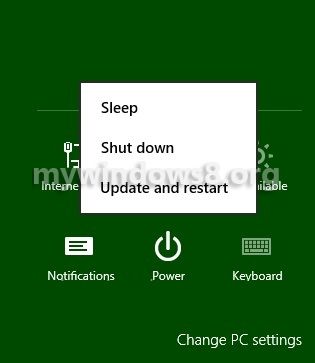
Steps to create Shutdown / Restart / Lock Icons in windows 8
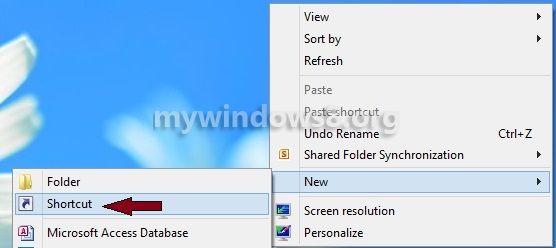
1. First of all create a shortcut on the desktop. Right-click on the desktop go to new and click on Shortcut.
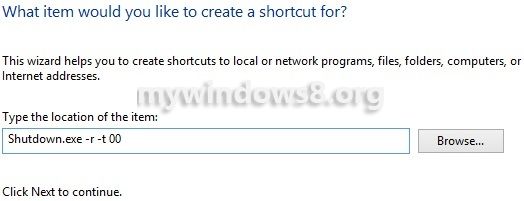
2. Now, a Create Shortcut over there type the location of the item.
Shutdown.exe -s -t 00 for shutdown
Shutdown.exe -r -t 00 for Restart
rundll32.exe PowrProf.dll,SetSuspendState for Hibernate
rundll32.exe PowrProf.dll,SetSuspendState 0,1,0 for Sleep
rundll32.exe User32.dll,LockWorkStation for Lock Workstation.
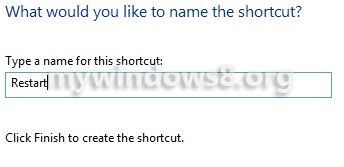
3. Name the shortcut and click Finish.
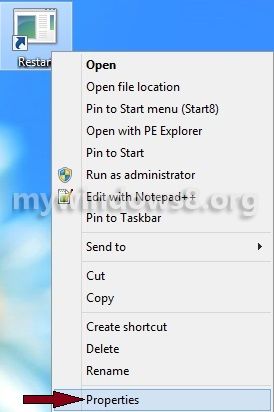
4. Now, right-click on the shortcut created on the desktop and select Properties.
5. A Restart Properties window appears, click on Change Icon.
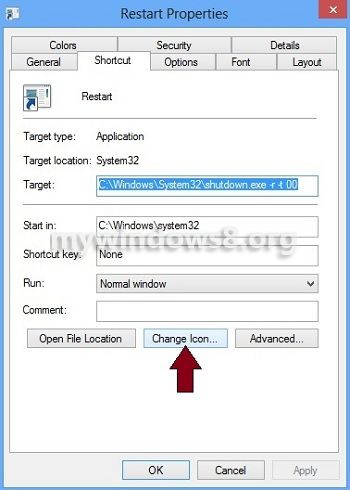
A alert box appears. Click OK.
6. Choose a icon from the list and click OK.
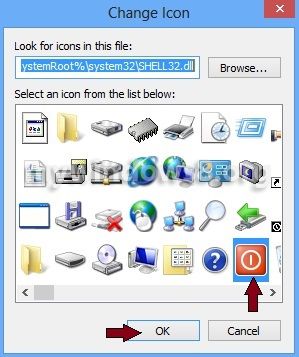
7. Finally click OK and see the changed icon. Now you can restart your system using this shortcut on the desktop.


About Susham
Susham is a part time blogger and a Software Engineer by Profession. He has keen interest in latest Gadgets and Tech updates. Like us he is also passionate about Windows 8.
Kindly spell check
rundll32.exe User32.dll,LockWorkStation for Lock Workstation.
Thanks for correcting the line…